
Overview
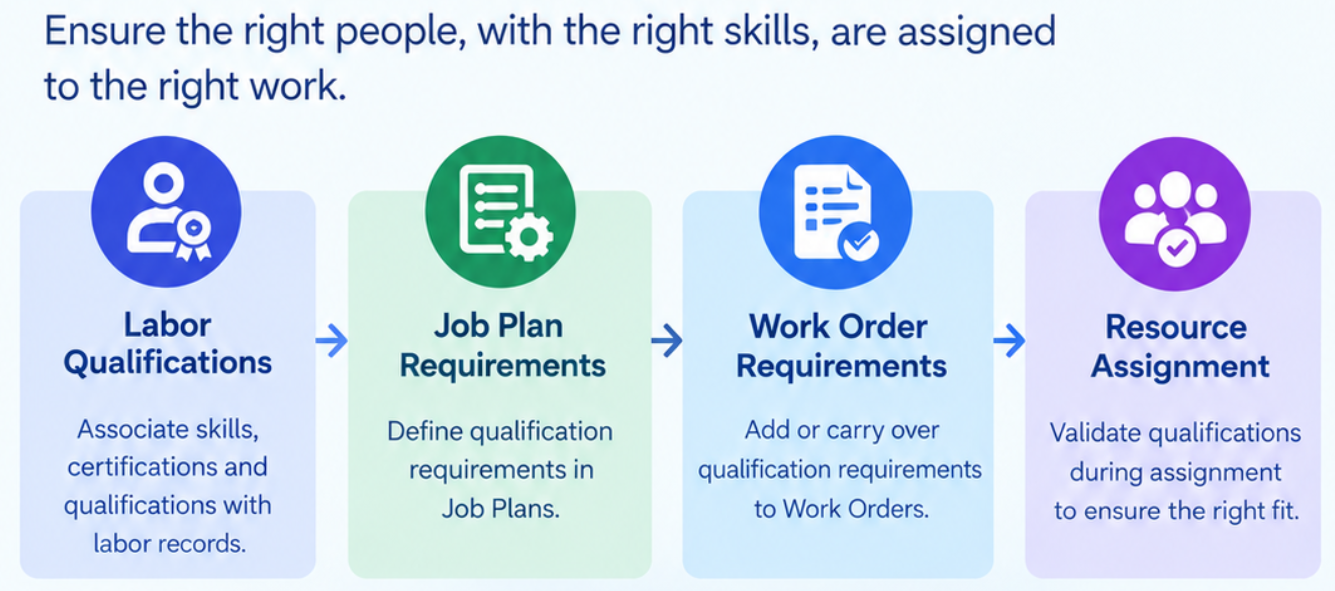
In IBM Maximo Manage, qualification requirements are a key aspect of workforce planning. This helps ensure that work orders are assigned to labor resources with the necessary skills, certifications, and qualifications to perform the required work, ensuring that tasks are carried out by qualified work force. Maximo Manage allows qualifications to be associated with labor records and qualification requirements can be defined in Job Plans and Work Orders. During resource assignment, qualification validation helps to identify whether the assigned labor does not meet the required qualification level. This capability supports better resource allocation and improves visibility into workforce competency requirements
Resource Qualification Requirements
Resource Qualification Requirements Window

Exception Type

Define Resource Qualification Requirements in Job Plan Header
- Navigate to Planning -> Job Plans
- Select the Job Plan for which qualification requirement need to be defined
- In the Job Plan tab Locate the qualification field -> Click on Qualification Icon -> Qualification Requirements window will be opened
- Click New Row -> Add Below details -> Click OK
- Qualification : Select the qualification
- Exception Type : Select exception type from the list (ERROR, SILENT, WARNING). Default : ERROR
- Repeat Step 4 to add additional qualifications requirement for the Job Plan


Define Resource Qualification Requirements in Job Plan – Labor
- Navigate to Planning -> Job Plans
- Select the required Job Plan -> In the Job Plan tab -> Scroll down to Labor Tab
- Select the Planned Labor entry for which qualification requirement need to be defined -> Locate the qualification field -> Click on Qualification Icon -> Qualification Requirements window will be opened
- Click New Row -> Add required qualification -> Click OK
- Repeat Step 4 to add additional qualifications requirement to the selected Planned Labor entry of the Job Plan
- Repeat Step 3 to 5 to add qualifications requirement to the other Planned Labor entry for which qualification requirement need to be defined

Define Resource Qualification Requirements in Work Order Header
- Navigate to Work Orders -> Work Order Tracking
- Select the Work Order for which qualification requirement need to be defined
- In the Work Order tab Locate the qualification field -> Click on Qualification Icon -> Qualification Requirements window will be opened
- Click New Row -> Add Below details -> Click OK
- Qualification : Select the qualification
- Exception Type : Select exception type from the list (ERROR, SILENT, WARNING). Default : ERROR
- Repeat Step 4 to add additional qualifications requirement for the Work Order


Define Resource Qualification Requirements in Work Order – Labor
- Navigate to Work Orders -> Work Order Tracking
- Select the required Work Order -> In the Plans tab -> Scroll down to Labor Tab
- Select the Labor entry for which qualification requirement need to be defined -> Locate the qualification field -> Click on Qualification Icon -> Qualification Requirements window will be opened
- Click New Row -> Add required qualification -> Click OK
- Qualification : Select the qualification
- Exception Type : Select exception type from the list (ERROR, SILENT, WARNING). Default : ERROR
- Repeat Step 4 to add additional qualifications requirement to the selected Labor entry of the Work Order
- Repeat Step 3 to 5 to add qualifications requirement to the other Labor entry for which qualification requirement need to be defined

Define Resource Qualification Requirements for Work Order using Job Plan
- Navigate to Work Orders -> Work Order Tracking
- Select the Work Order -> In the Work order tab, locate Job Plan Field -> Click on Job Plan Look Up
- Select the Job Plan for which qualification requirements have already been defined.
- Save the work order -> Qualification requirements defined in the Job Plan will be carried over to the Work Order.
Validations
- When a labor resource without the required qualifications is assigned,
- The system displays an error message,
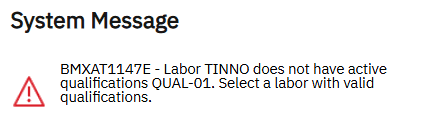
- The Qualification Met field is set to N/A or None.
- The system displays an error message,
- When a labor, who meets the required qualifications is assigned,
- The Qualification Met field is set to FULLY.


- In the Graphical Assignment and Graphical Work Week applications, an error message is displayed during drag-and-drop assignment if the resource does not meet the required qualification level.
- In the Scheduling Dashboard and Dispatching Dashboard applications, optimization models consider resource qualifications and qualification requirements during resource assignment.
Key Points
Resource qualification levels can be validated when resources are assigned to work orders.
Leave a Reply